Approval workflow
With Approval workflow you can ensure that the cases you cases that are created from a template are approved before they are sent for signature.
The approval is internal and not an e-signature on the case. The signing parties will not see that the case has been subject to approval.
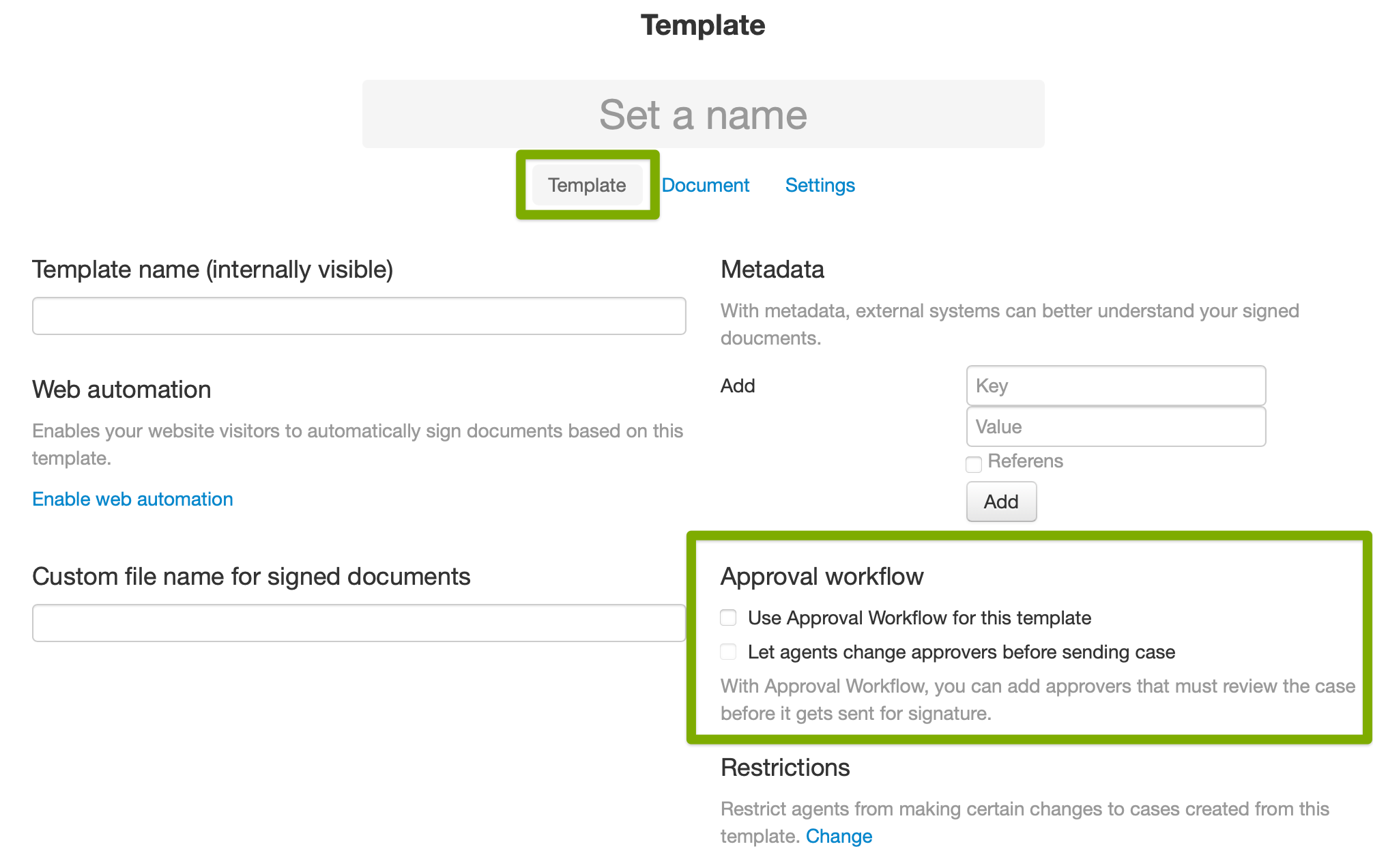
Enabling approval workflow on a template
- Edit a template and go to the Template settings.
- In the Approval Workflow section, enable "Use approval workflow for this template". There's an option to let agents change approvers before requesting approval, instead of enforcing the specified approvers on the template.
-
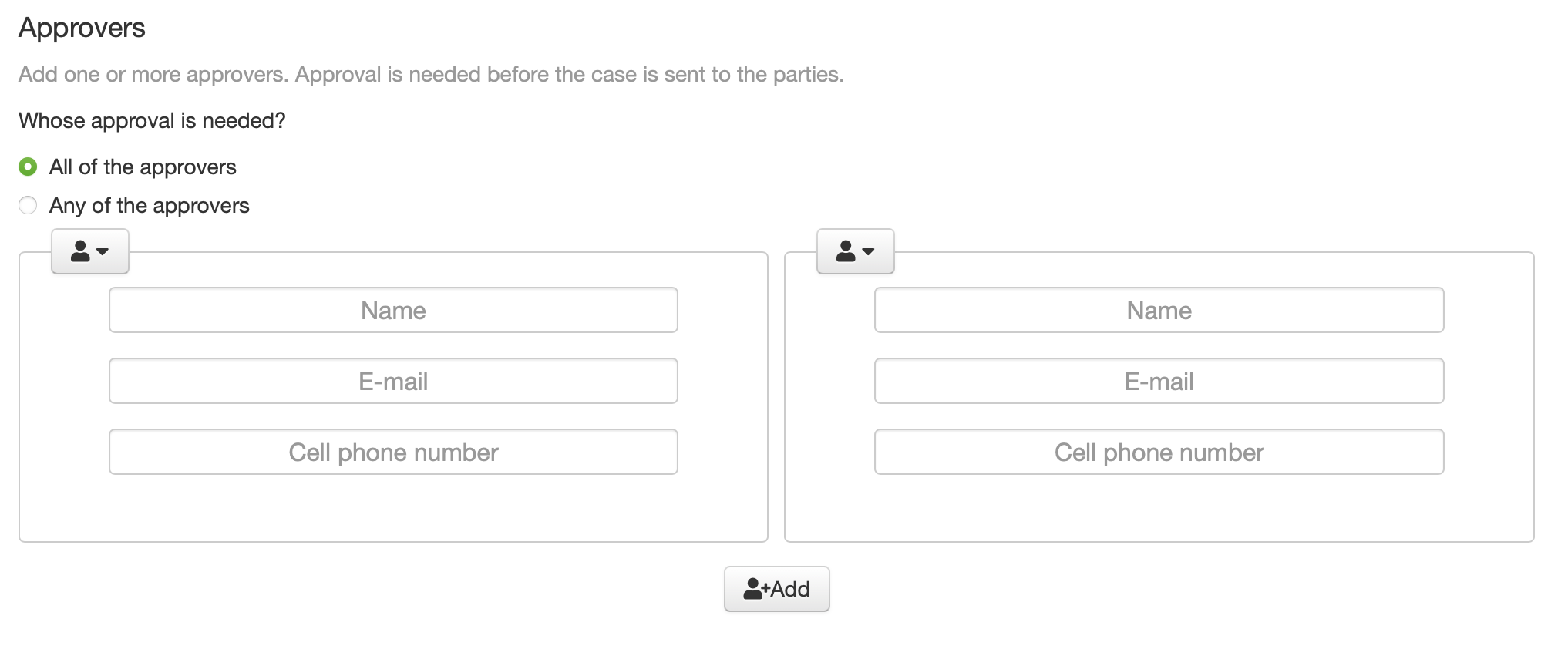
Add one or several approvers. If you add several approvers, decide if all of them need to approve the case or if anyone of the approvers can approve and send the case.
Requesting approval
- Create a case from a template with approval workflow.
- When you're done setting up the case, choose "Request approval".

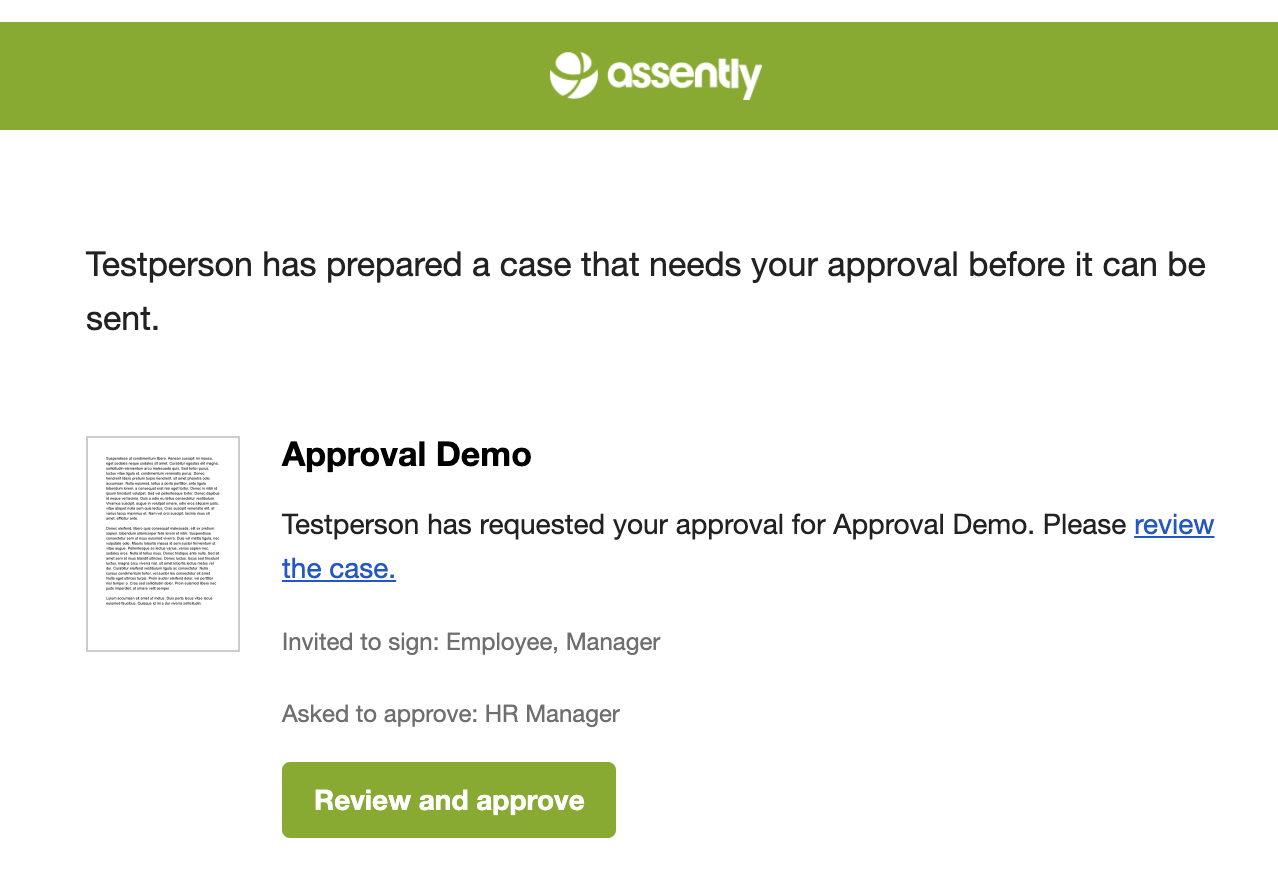
The approvers will get a request for approval from you via email. They can review the case and approve or reject the approval request it with a comment.
Review and approve a case
When an agent has requested your approval you will get an email notification where you can review the case. You can approve or reject the approval request with a comment. As an approver you can see the documents, the parties and any internal metadata.
Approve a case as an agent with permission to approve
In addition to the approvers of a case, agents with the permission to "Approve and send" can override the approval process by directly approving and send the case.

When an agent approves and sends a case, it bypasses the specified approvers on the case and sends it for signing. You can see whose approval was originally requested and who overrode the approval workflow in the case archive.
By default the roles Administrator and Manager has the permission to "Approve and send". You can modify the roles to give other roles this permission.